Guide
How to add your first note in Lovie

Adding a note is the fastest way to use Lovie. You do not need to set anything up first. If you can write a text message, you can write a note here. This guide walks through it step by step.
Step 1: Open the composer
From anywhere in the app, tap the round pencil button in the middle of the bottom bar. That opens the composer, where every note starts.
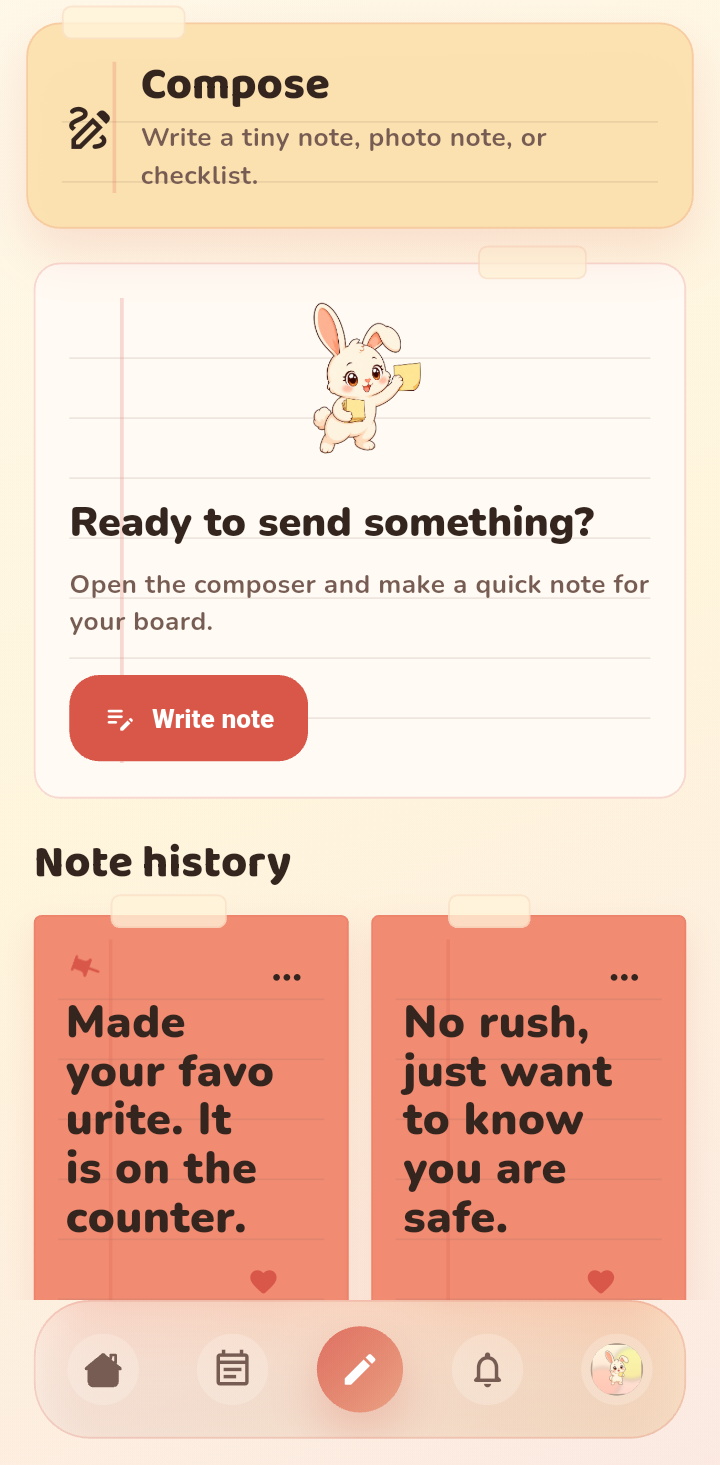
Step 2: Write your note
Type a short message for your friend or partner. Notes can be as small as you like. A single line such as coffee is ready or good luck today is exactly the kind of thing Lovie is built for.
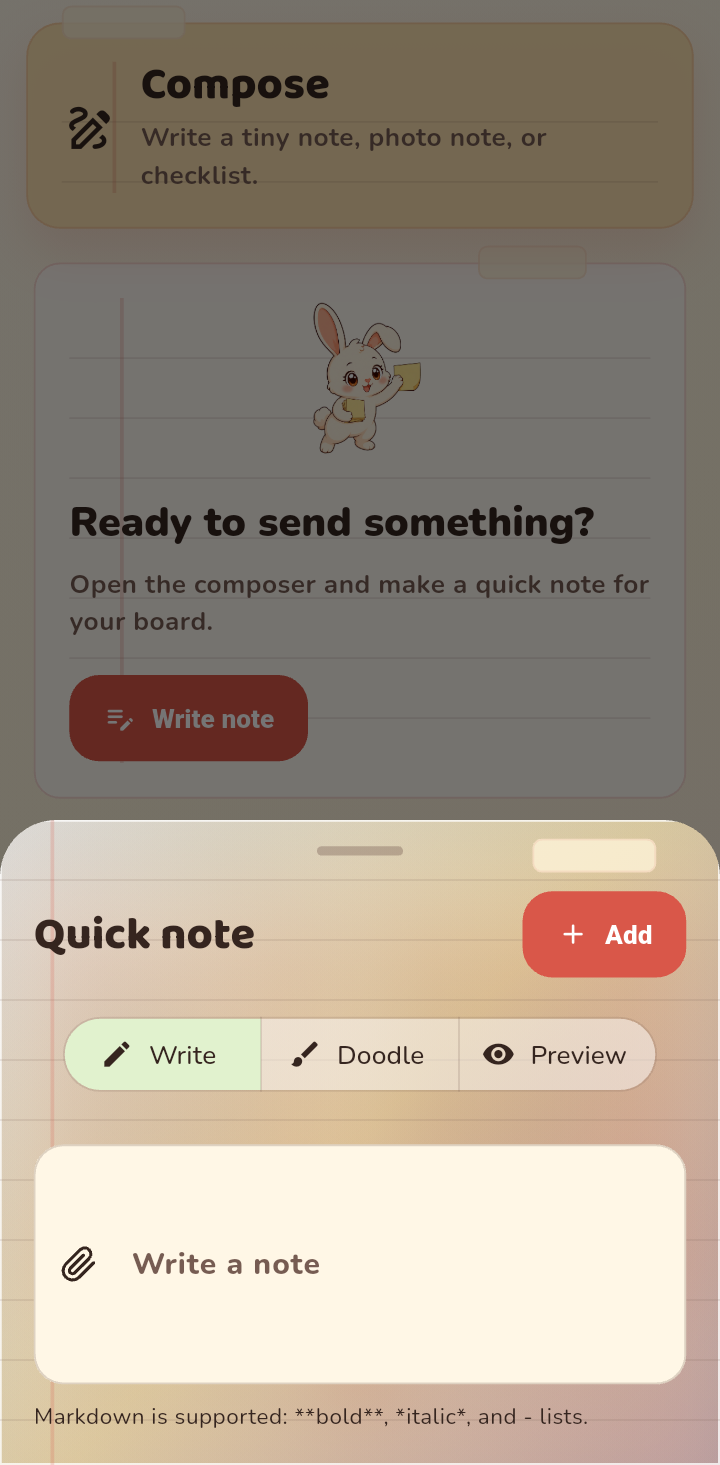
If you want to say more, you can. Longer messages work too, but the sweet spot is short and specific.
Step 3: Send it to the board
Tap send. Your note lands on the shared board for both of you. There is no separate inbox to check and nothing to accept. It is just there.
Step 4: Pin it (optional)
If a note matters for today, pin it. Pinned notes stay at the top of the board and can show up on your home screen widget, so neither of you has to scroll to find them.
Tips for a great first note
- Be specific. A detail about their day beats a generic greeting every time.
- Keep it small. One thought per note is easier to read and reply to.
- Use photos. A quick photo of something you saw together makes a note feel personal.
Troubleshooting
If the note does not appear on the other phone, check that the app has synced by opening it once. If it still does not show, make sure you are both on the same board in your profile under Friend board.
FAQ
Can I edit a note after sending it?
Yes. Open the note on the board and use the edit option to change the text, then save. Your friend or partner sees the update right away.
Can I add a photo to a note?
Yes. When you write a note you can attach a photo, which is handy for sharing a small moment or a memory.