Guide
How to put notes on your home screen

A note you cannot see is a note that does not help. The home screen widget puts your latest shared note right where you look every day, so you see it without opening anything.
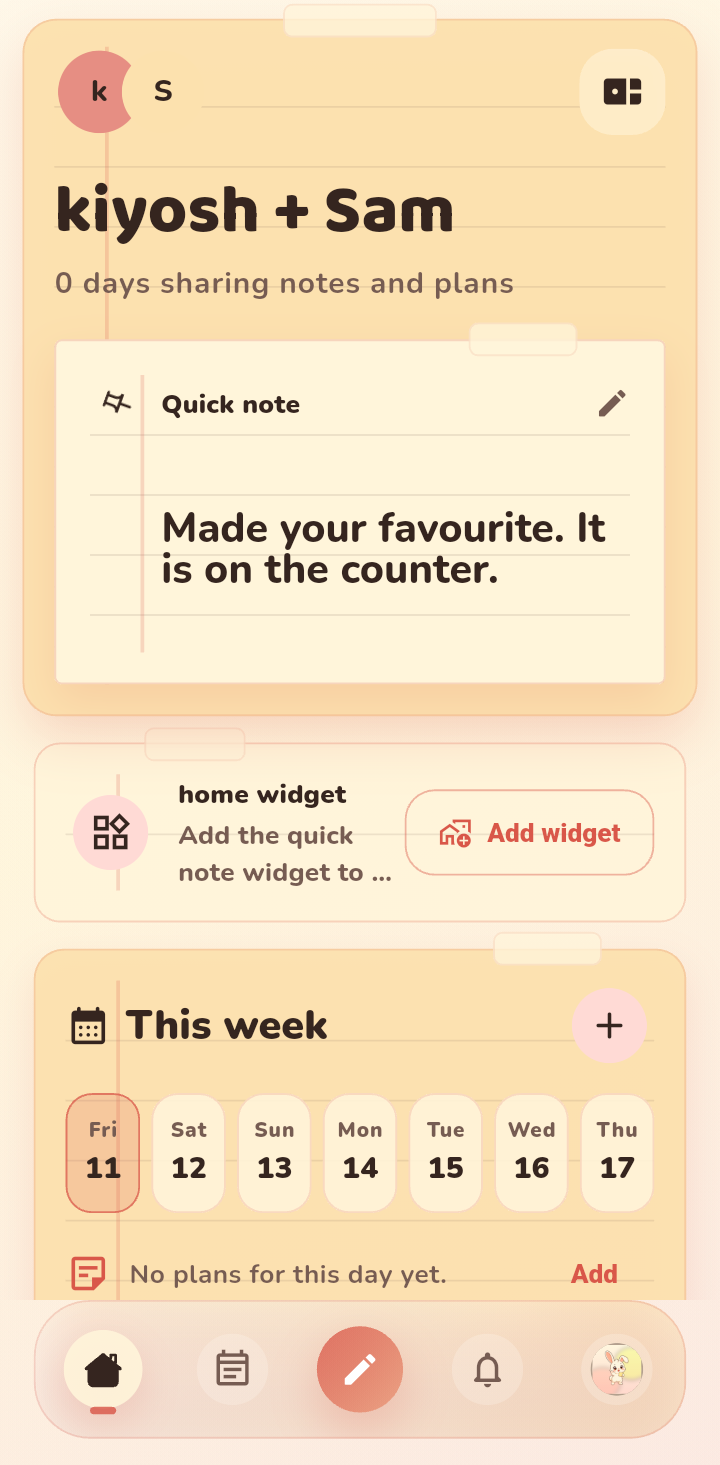
Step 1: Pin the note you want to show
Open the board and pin the note you want on your home screen. The pinned note is the one the widget displays. If you change your mind later, pin a different note and the widget follows.
Step 2: Add the widget on Android
- Touch and hold an empty spot on your home screen.
- Tap Widgets.
- Find Lovie in the list.
- Choose the note widget and drag it to a spot you like.
Step 3: Add the widget on iPhone
- Touch and hold an empty spot on your home screen until the icons jiggle.
- Tap the plus button in the top corner.
- Search for Lovie and pick a widget size.
- Tap Add Widget, then position it where you want.
Step 4: Keep it useful
One widget is plenty. Pin the note you care about most and let everything else live on the board. If your widget ever looks out of date, opening the app once refreshes it.
Tips
- Put the widget somewhere you actually look, like the first home screen or beside your calendar.
- Pinned notes are great for today things: a reminder, a plan, or a sweet message you want to reread.
- You can change what shows any time by pinning a different note.
FAQ
Why is my widget not updating?
Widgets refresh when the board changes. Open the Lovie app once and the widget should update within a few moments. Make sure widget sync is enabled in your notification settings.